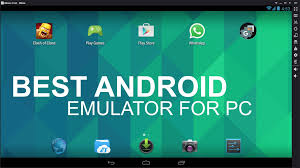
There are a lot of valid reasons why someone would want to run Android emulators on their PC. App developers may be trying to test their application before shipping it out. Gamers may want to use a mouse and keyboard on their games. Maybe you just want it there to have it. In any case, Android emulation on PC is possible and it’s a lot easier than it used to be. Some old favorites either left the space or became unusable at some point (Andy, AmiduOS, and Leapdroid), but everything else here should work okay for most people. Here are the best Android emulators for PC and Mac.
This will be a great option for gamers when it’s fully launched. Being able to run apps and games natively on Windows 11 may replace emulator use for a wide variety of use cases such as gaming or general productivity so keep an eye out for that.

The best Android emulators for PC and Mac
- Bluestacks
- LDPlayer
- Android Studio
- ARChon
- Bliss OS
- Gameloop
- Genymotion
- Nox
- Phoenix OS
- Prime OS

The three main uses for Android Emulators.
There are three main uses for emulators. The first is the most common and it’s for gaming. Gamers can use emulators on their computers to make some games easier to play. They don’t have to rely on the battery life of their devices and the existence of macros and other tricks help the process. In most cases, these little tricks aren’t illegal (in most games) so nobody really has a problem with it. The best Android emulators for gaming include BlueStacks, LDPlayer, MeMu, KoPlayer, and Nox.
The second most common use case is development. Android app and game developers like to test apps and games on as many devices as possible before launch. Fortunately, Android Studio comes with the “Android Virtual Device” (AVD) which blows all other emulators out of the water in terms of performance and functionality. The only drawback for non-developers is that it comes with an installation of the space-hungry Android Studio and Android Software Development Kit (SDK). Of course, this is no problem for developers that already have all the necessary software on their machines.
The final main type is productivity. This isn’t nearly as common because Chromebooks are cheaper and better for using Android apps on something other than a phone and most productivity tools are cross-platform. In this day and age, we recommend going with a Chromebook (with reasonably decent specs) if you want to run productivity apps in a laptop or computer environment. It’s simply better.
BlueStacks
BlueStacks is known by many users to be the most comprehensive Android app player in the market, and with good reason. Aside from running on both Windows and Mac, this emulator comes jam-packed with a ton of features to improve the gamer’s experience.
Its most popular features include the Keymapping Tool to create customized control schemes, the Instance Manager through which you can create multiple instances of the emulator and run several games simultaneously, and quality-of-life features like Eco Mode, which help to reduce resource consumption while running the most demanding games. It’s also the safest emulator out there, with certified GDPR compliance — your data is always safe with them.
The most recent version, BlueStacks 5, is the lightest and fastest the emulator has ever been, delivering high-performance gaming even on low-end devices. The latest version addresses some of the most common complaints of the previous version — namely, the fact that it can feel bloated, especially when running on inferior hardware. Try it right now for yourself and discover why BlueStacks has a community of over 500-million gamers around the world!
LD Player

LDPlayer is a lightweight Android emulator focusing on gaming performance. Running Android Nougat 7.1, it features the usual array of gamer-oriented features, including good keyboard mapping controls, multi-instance, macros, high FPS, and graphical support.
It supports many games, including Epic Seven, Clash of Clans, Arknights, and many others. This is one of the few emulators on the list that gets active updates to improve compatibility. In the latest versions, LDPlayer has optimized the smoothness of Free Fire & Mobile Legends and fixed the device restriction on Moonlight Sculptor.
Android Studio Emulator
Android Studio is the default development console (integrated development environment, or IDE) for Android. It comes with a bunch of tools to help developers make apps and games specifically for Android. As it turns out, there is also a built-in emulator that you can use to test out your app or game. We use the emulator to test out new versions of Android from time to time.
The setup is rather complicated so it won’t appeal to everyone but it is by far the fastest and most feature-rich option on this list. You can run vanilla Android, download apps from the Google Play Store as you normally would, add custom launchers and keyboards, and emulate any size or form-factor device. You can even try out foldable devices!
ARChon

ARChon isn’t a traditional emulator. You install it as a Google Chrome extension. It then gives Chrome the ability to run Android apps and games (albeit with limited support). It’s not an easy emulator to get running. You’ll have to install the thing to Chrome. From there, you have to obtain APKs and load them in.
As an added rub, you may need to use a tool to change the APK in order to make it compatible. There are a lot more steps to make this work than most other Android emulators for PC. On the plus side, though, it works with any operating system that can run an instance of Chrome (macOS, Linux, Windows, etc). We linked to the official GitHub where you can find detailed instructions for its use.
Bliss OS

Bliss is something a little bit different. It works as an Android emulator for PC via a virtual machine. However, it can also just flat run on your computer through a USB stick. The boot-from-USB option is definitely a power user option and not recommended for less intense use cases.
As a VM install, the process is easy, but tedious if you’ve never made your own virtual machine before. The USB installation method is even more complicated, but it lets your computer actually run Android natively from boot. We don’t recommend this one for the faint of heart. That makes Bliss a super unique emulator if you can make it through the steps to the end.Of course, it only really runs well if your system is compatible so be prepared with a backup of your current operating system. The system runs Android Oreo and that’s among the newer versions of Android offered on an emulator.
GameLoop
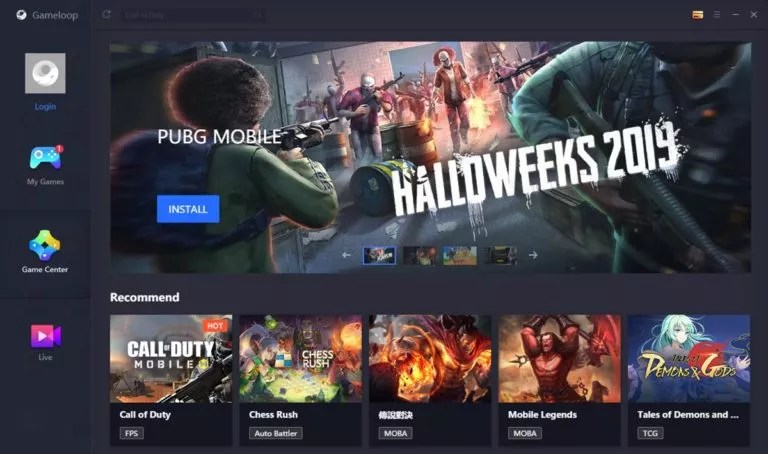
GameLoop, formerly known as Tencent Gaming Buddy, is an Android emulator for gamers. In fact, it’s good enough that Tencent calls it the official emulator for its games, including Call of Duty: Mobile and PUBG Mobile. Of course, it features other games aside from Tencent’s, although its collection isn’t as big as it could be.
The emulator downloaded and installed fine and the games we tested ran just fine. This one is not good for productivity or developmental testing. However, if you have an itch for mobile FPS gaming along with some titles, this is actually a fairly decent gaming emulator and it boasts a good collection of newer titles. Plus, the keyboard controls and performance is good.
GenyMotion
This Android emulator is mostly for developers. It lets you test your apps on a variety of devices without owning them. You can configure the emulator for a variety of devices with various versions of Android to help suit your needs. For instance, you can run a Nexus One with Android 4.2 or a Nexus 6 with Android 6.0. You can easily switch between virtual devices at will.
It’s not great for consumer uses, but Genymotion does offer its services for free for personal use. Its most useful feature is its availability on both your desktop computer and the cloud. Those without powerful computers can make Genymotion’s servers do all the work for them.
Nox

Nox is another Android emulator for PC that works well for gaming. That includes the usual stuff like key-mapping with your keyboard, actual controller support, and even the ability to key-map gesture controls. For instance, you can assign the function to swipe right to an arrow key and use that in a game without actual hardware controller support.
Nox gets regular updates. It’s also one of the few that runs Android 9, a much newer version than the Android 7 that most emulators run. This emulator also features multiple instances so you can play multiple games. There is even script recording. Nox started out as a lightweight alternative to heavier hitters, but it’s quickly becoming a lot more mature and usable.
Phoenix OS

Phoenix OS is one of the newer Android emulators for PC. Like most these days, it boasts a gamer experience. However, it also boasts a desktop-like experience so it actually works pretty well for productivity as well. It has Google Play Services, although updating those services can be a bit of a pain sometimes. That means you get every app and game in the Google Play Store. Phoenix OS also runs Android 7.1 which is relatively modern for an Android emulator. You can download the emulator from its official website and its forums are housed on XDA-Developers.
Prime OS

PrimeOS is kind of a standout in the Android emulator space. It’s not actually an emulator. You install this as a partition on your computer and it boots up running native Android. It’s a gamer-focused Android experience, although you can totally use this for productivity if you really want to. PrimeOS includes a gaming center, support for mouse and keyboard, and access to most Android apps and games.
To be frank, it almost runs like ChromeOS minus all the Chrome parts. You can multitask, watch video content, or play games as you choose. Perhaps the coolest part is that you can run it with the latest versions of Android (up to Android 11) since you don’t need a virtual machine. The official website is one of the worst on the list, but luckily you don’t have to go there very often except to download PrimeOS.
If I missed any of the best Android emulators for Windows, tell me about them in the comments!
Thank you for reading. !!!
 The Guardian